
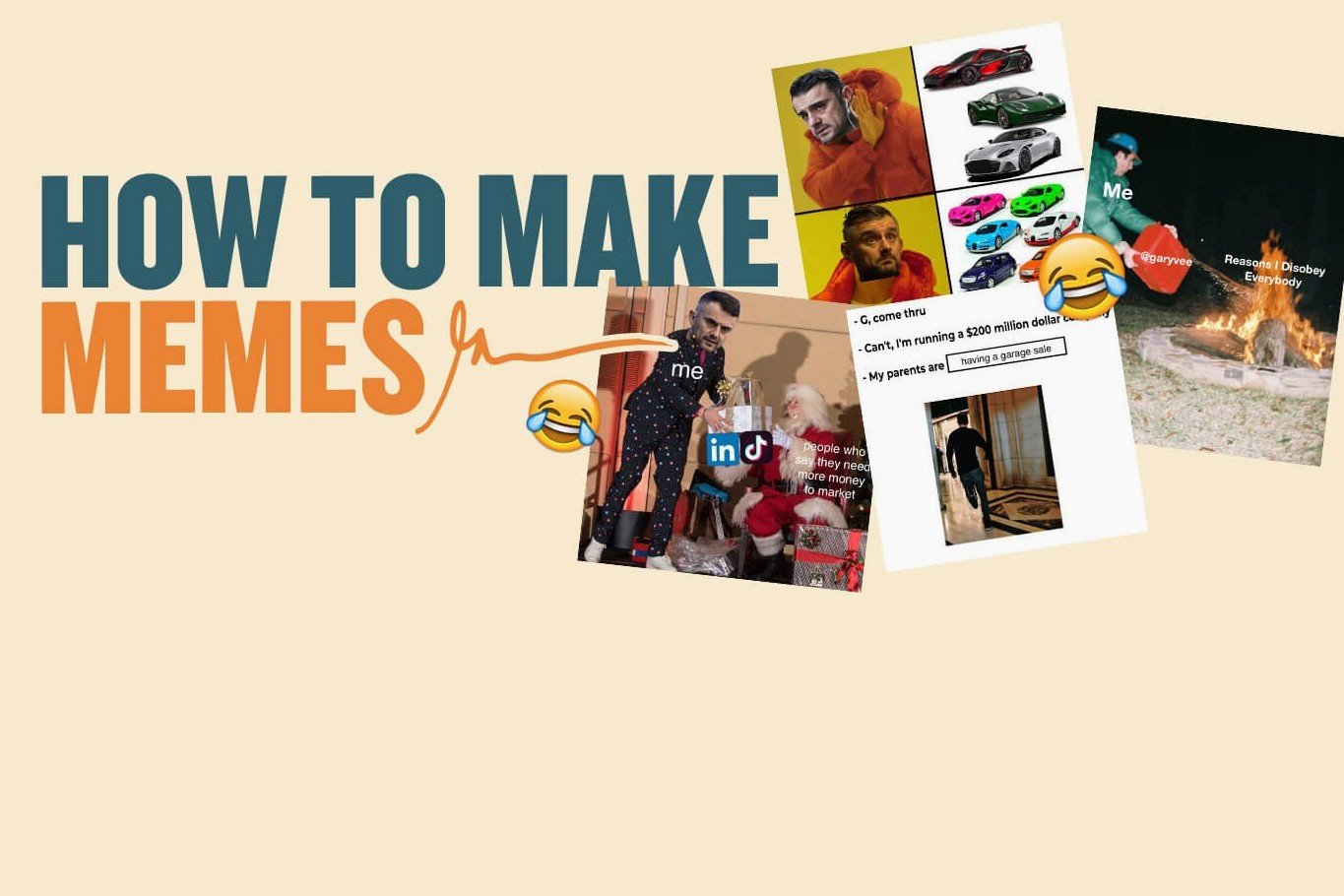
Most free meme tools fall apart the moment you need something beyond a single static image. They slap a watermark on your export, force a signup before you can download, or simply don't support video at all. This guide walks through exactly how to make a meme online for free — from both images and video clips — without hitting any of those walls, using KuberAgent's Advanced Meme Studio.
What You Need Before You Start
You don't need design software, a video editor, or any prior experience. All you need is:
- An image file (PNG, JPEG, or WebP) or a video clip (MP4, WebM, or QuickTime)
- A web browser — desktop or mobile
- A caption idea, or just the willingness to play with a built-in template
Everything else — editing, rendering, and exporting — happens directly inside your browser tab. Nothing is installed, and nothing is uploaded anywhere.
Step-by-Step: How to Make a Meme from an Image or Video
Step 1: Upload Your File
Open the Advanced Meme Studio and drag your image or video into the upload area, or click to browse for it. If you just want to test the tool first, royalty-free sample clips and images are available so you can start immediately without your own file.
Step 2: Add Multiple Scenes (Optional)
Want to combine more than one clip or photo into a single meme? Multi-scene storyboarding lets you sequence several files together on one timeline — something most basic meme generators don't offer, since they're usually built around a single image only.
Step 3: Pick a Meme Format
Choose a recognizable meme style to build on:
- Classic Overlay — the standard top-and-bottom caption format
- Twitter/X Style — with a white or black banner header
- Demotivational Poster — black-bordered, caption-below-image
- Breaking News Banner — for parody news-style memes
Step 4: Add Text, Emoji, or Stickers
Type your caption and pick a font — Impact, Outfit, Arial, Georgia, or Courier — then adjust size, alignment, fill color, and outline. Reaction emoji like 😂, 💀, and 🔥 are built in, and you can upload your own transparent PNG sticker for something more custom.
Step 5: Time Your Overlays (For Video Memes)
This is where a video meme stops feeling like a slideshow with captions. Every text, emoji, or sticker layer has its own start and end point on the timeline, so a caption can appear at the 2-second mark and vanish by the 4-second mark — synced precisely to whatever's happening on screen, instead of sitting there for the entire clip.
Step 6: Apply Effects and Filters
Layer in some personality with built-in canvas effects:
- Screen Shake for action-style chaos
- Zoom Pulse for dramatic emphasis
- Digital Glitch for a broken-screen, RGB-shifted look
Color adjustments — black & white, sepia, brightness, contrast — are also available, each with its own intensity slider.
Step 7: Mix in Background Music (Optional)
For video memes, layer in audio by uploading your own track or choosing a free preset like Synthwave Retro, Lofi Chillbeat, or Orchestral Drama. The original clip's audio and the new background track can be balanced independently, so one doesn't drown out the other.
Step 8: Choose Aspect Ratio and Frame Rate
Match your export to wherever it's headed:
- 1:1 Square — Instagram feed
- 16:9 Wide — YouTube or X
- 9:16 Portrait — Reels, Shorts, or TikTok
Frame rate is adjustable too, from a lightweight 15 FPS to a smoother 30 FPS.
Step 9: Generate and Download
Click Generate & Save Meme. The tool renders the video frames, text overlays, effects, and audio directly to a canvas inside your browser using the native MediaRecorder API. Once it finishes compiling, your meme is ready to download immediately — no queue, no watermark.
Why Make Memes in the Browser Instead of an App?
Uploading a personal photo or video to a random meme site just to add a caption is more risk than a meme is worth. Because the entire process runs client-side, your file is never sent to a server — rendering happens locally on your own device. That also means no waiting behind other users in a server queue, and no watermark stamped across your download to push you toward a paid tier, since there isn't one.
Common Mistakes to Avoid
- Skipping overlay timing on video memes. Leaving a caption on screen for the entire clip instead of timing it to the action makes the joke land slower — or not at all.
- Ignoring aspect ratio. A meme exported in the wrong ratio gets awkwardly cropped the moment it's posted to Reels or Stories.
- Overusing effects. Screen Shake and Glitch are fun in small doses, but stacking too many at high intensity can make your text unreadable.
- Forgetting font readability. Impact is the meme-standard font for a reason — it stays legible even over busy, high-contrast backgrounds.
Frequently Asked Questions
What file formats can I use to make a meme?
PNG, JPEG, and WebP for images; MP4, WebM, and QuickTime for videos.
How do I make a meme from a video instead of a photo?
Upload a video clip instead of an image, then use the timeline scheduler to set when each text or sticker overlay appears, so captions sync with specific moments in the clip.
Can I control when text overlays appear in a video meme?
Yes. Every text or emoji layer has its own start and end time on the timeline, giving you full control over exactly when it appears and disappears during playback.
Is this meme maker really free, and does it add a watermark?
Yes — it's free with no signup required, and no watermark is added to your final exported meme.
How are video memes generated without uploading my file anywhere?
The video and text frames are rendered to a canvas in real time and recorded using your browser's native MediaRecorder API, with any background audio mixed in through Web Audio API nodes. The entire process stays local to your device.
Final Thoughts
Making a meme shouldn't mean fighting through signup forms, watermarks, or upload limits. With the steps above, you can go from a blank upload screen to a fully timed, effect-layered meme — image or video — in just a few minutes, entirely inside your browser.
Try the Advanced Meme Studio now and make your first meme for free.
Ready to try Video to MP3 Extractor?
Extract high-quality audio tracks from video files (MP4, WebM) locally inside your browser. Process your files locally & securely right inside your browser. No registration required.