
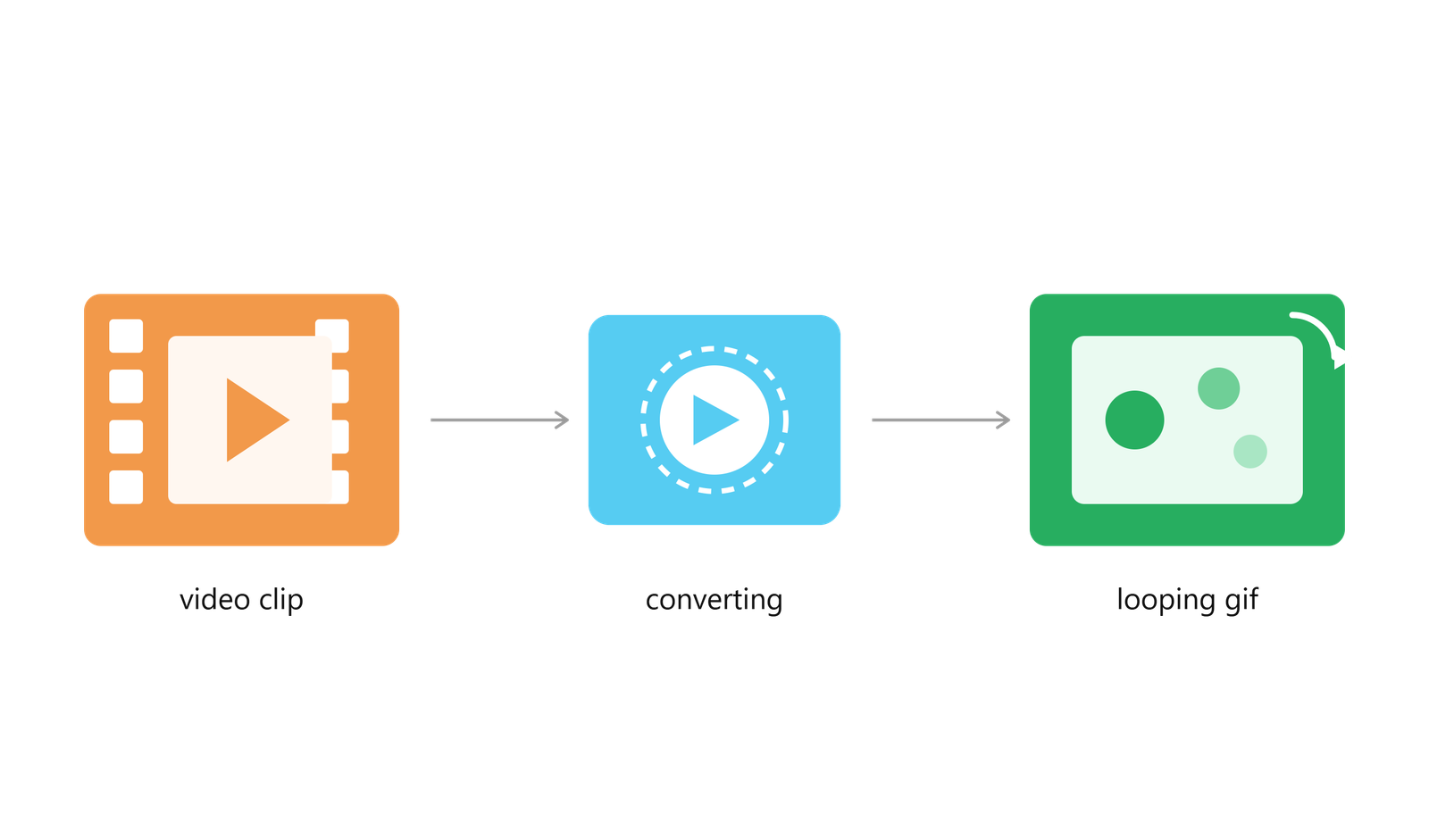
It started with a five-second clip of my dog missing a jump onto the couch. I wanted to send it as a GIF, not a video, because half the group chat doesn't bother tapping "play" on a video but everyone watches a GIF that's already moving. So I went looking for a converter, figured it'd take two minutes, and ended up three tabs deep in tools that either watermarked the output, took ninety seconds to process a five-second clip, or produced a file so heavy it wouldn't even upload to WhatsApp.
That rabbit hole turned into an actual weekend project — testing a handful of video-to-GIF tools properly instead of grabbing whichever one showed up first on Google. What follows is everything I learned, the tools that held up, and a few mistakes I made so you don't have to repeat them.
Why GIFs Are Still Everywhere
You'd expect GIFs to have quietly died out by now, especially with short-form video taking over every platform. But they haven't. They load faster than embedded video inside most chat apps, they autoplay without sound — which is exactly what platforms like Twitter and Slack want — and they're still the easiest way to show a five-second reaction or a quick product demo without asking someone to hit play. Marketers lean on them in emails too, since most email clients don't render video but will happily play a GIF on loop, no click required.
Developers use them for a different reason entirely. A GIF in a GitHub README or a bug report shows exactly what's happening in two seconds flat, without asking a reviewer to download a video file just to see a UI glitch reproduce itself. It's a small thing, but it saves everyone time.
So even in 2026, with reels and shorts dominating everything, the humble GIF still has a very specific job that nothing else does quite as well.
What Separates a Good Tool From an Annoying One
After going through enough of these, a pattern showed up pretty quickly. The tools worth using shared a few things in common, and the ones that wasted my time were missing at least one of them.
They let you trim the clip before converting, not after — so you're not wasting processing time and bandwidth on footage you don't actually need in the final GIF. They give you real control over frame rate and resolution, because a GIF doesn't need to be 1080p at 30fps to look good; 480px width and 12fps is usually plenty for anything going into a chat window or a webpage. And critically, they don't force a watermark across your output unless you pay — which more tools do than you'd expect, and which you usually only discover after you've already trimmed, adjusted, and exported the whole thing.
There's also the question of where your file actually goes. Browser-based tools upload your video to a server somewhere before converting it, which is fine for a dog video, but worth thinking about if you're converting anything even slightly sensitive — an internal screen recording, a client call clip, whatever. A few tools process everything locally in the browser instead, which is worth knowing about if privacy matters for what you're doing.
The Tools That Actually Held Up
EZGIF ended up being the one I kept coming back to, and it wasn't close. It looks like the interface hasn't been redesigned since 2014, but it's fast, completely free, has no forced watermark, and gives you real control over color palette and frame rate — which matters more than people realize for keeping file size manageable. I ran the same ten-second clip through it three times with different frame rate settings just to see the size difference, and dropping from 24fps to 12fps cut the file size almost in half with barely any visible difference in how smooth it looked.
CloudConvert was the one I used when I already had other files to convert in the same session, since GIF is just one of dozens of formats it handles alongside video, audio, and document conversion. It's fully cloud-based, so the upload speed depends on your internet connection more than the tool itself, but the output was consistently clean every time I tried it, and it didn't choke on longer clips the way a couple of the free tools I tried early on did.
Adobe Express came in when I wanted to add text over a GIF for something closer to a marketing asset than a casual chat message — think a product feature callout rather than a reaction clip. It's more of a design tool than a pure converter, and that shows in how much longer it takes to get from upload to export, but that extra step is exactly what made it useful for that one case. If you just need a plain GIF fast, it's overkill.
And for anyone comfortable with the command line, FFmpeg is worth learning if you're doing this regularly. It's genuinely overkill for a single dog-missing-the-couch GIF — there's a real learning curve to the syntax — but if you're converting clips as part of an actual workflow, whether that's a weekly content batch or an automated pipeline, scripting it with FFmpeg saves an enormous amount of repetitive clicking that you'd otherwise be doing manually in a browser every single time.
I'll also mention Giphy's own GIF Maker, mostly because it serves a different purpose than the rest of this list. If your goal is for the GIF to actually be discoverable inside apps that pull from Giphy's search — which is a lot of messaging apps — making it through their own tool means it gets tagged and indexed from the moment you create it, instead of sitting as an isolated file with no discoverability at all.
What I'd Tell Someone Starting From Scratch
Trim your clip first — don't convert the whole video and crop it down afterward. You're just wasting processing time and often losing quality in an extra step you didn't need. Cap the frame rate around 10 to 15fps; anything higher barely improves how smooth it looks to the eye but adds real weight to the file, especially once it stretches past a few seconds. Scale the resolution down before converting too, since a GIF at 480px width usually looks just as good in a chat window or embedded on a page as one exported at full HD, at a fraction of the file size and load time.
If the tool gives you a choice between adaptive and fixed color palettes, go adaptive — it tends to hold up noticeably better in busier scenes with more colors and movement, where a fixed palette can start to look banded or grainy.
Mistakes I Made So You Don't Have To
I converted a full 40-second clip before realizing I only needed eight seconds of it, which meant re-uploading and re-processing from scratch. I also ignored frame rate on my first few attempts and ended up with GIFs too large to attach directly in some chat apps, forcing me to redo them anyway. And more than once, I picked a "free" tool that looked clean on the landing page, only to find the watermark appeared the moment I hit export — always worth testing with a throwaway clip first before committing real time to something you actually care about.
Quick Answers
Is converting video to GIF free?
Yes — tools like EZGIF and CloudConvert handle it for free within reasonable file size limits. Paid tiers usually just raise the limit or add batch processing, not better quality.
Why is my GIF so heavy?
Long duration, high frame rate, and large resolution are almost always the reason. Trimming the clip and lowering the frame rate fixes it fast, usually without any visible tradeoff.
Can I do this on my phone?
Yes, most browser-based tools work fine on mobile browsers, and there are dedicated apps built specifically for on-the-go conversion.
What frame rate should I use?
10 to 15fps is the sweet spot between smooth-looking motion and a file size that won't choke a chat app or slow down a webpage.
There's no single best tool in this whole list — it genuinely depends on what you're optimizing for that day. But if you only try one, start with EZGIF. It's the one that got my dog's failed couch jump into the group chat in under a minute, watermark-free, and it's the one I still reach for first every time.
The next time someone tells you converting video to GIF "needs a paid app," send them this instead. What used to mean uploading your file to some random server and hoping it doesn't sit in a watermark-locked queue is now something you can do before your tea gets cold.
Try it here: KuberAgent Video to GIF Converter — free, private, and instant.
Ready to try the Video to GIF Converter?
Convert any video clip into a lightweight GIF in seconds, right inside your browser. No uploads to a third-party server, no watermark, no registration required.