
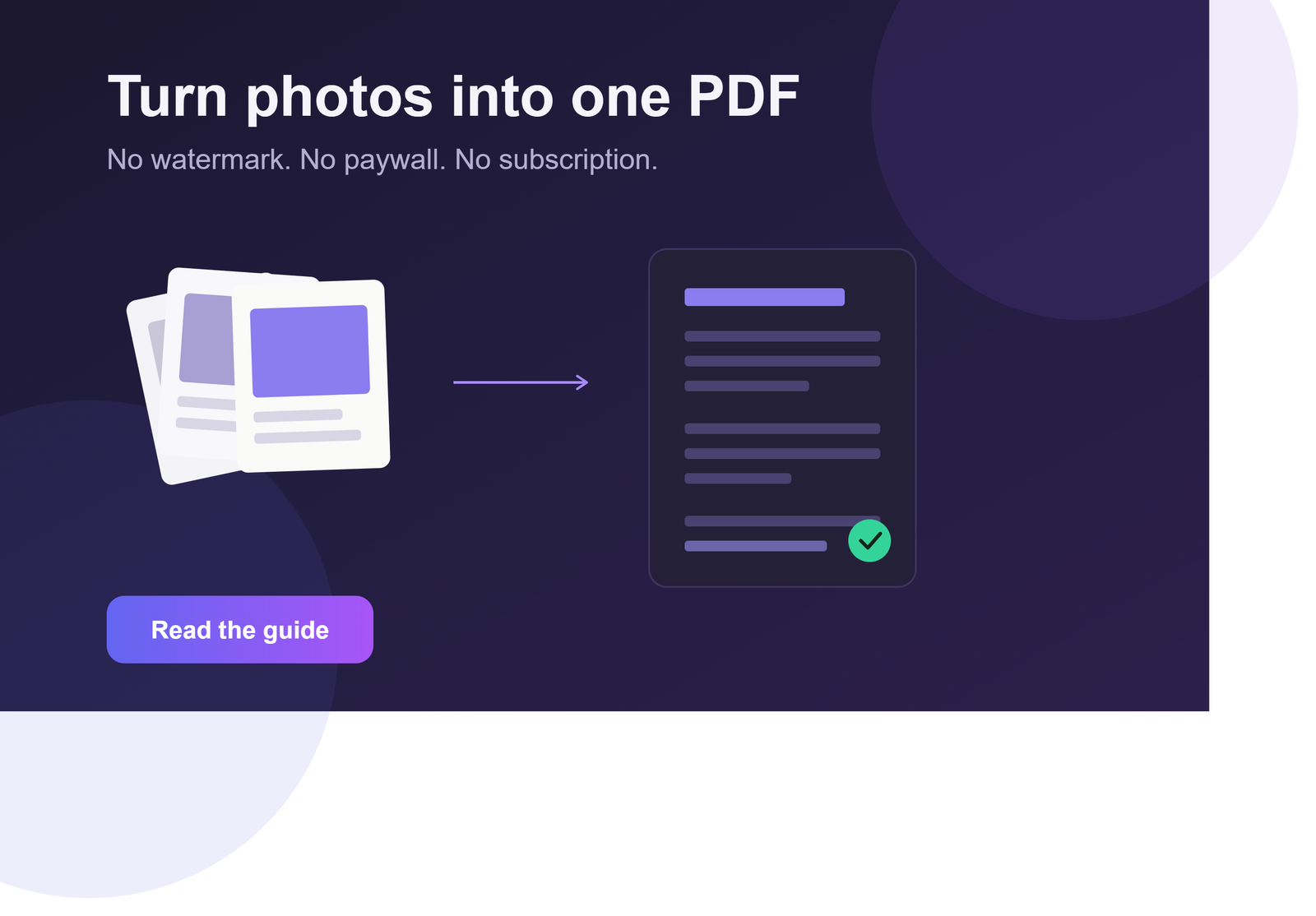
It was eleven at night, I had a visa application due the next morning, and every document I needed was a photo — my bank statement, my ID, a hotel booking confirmation, all sitting in my phone's gallery as separate JPGs. The portal wanted one PDF. Just one. I figured this would take two minutes.
It took forty. Not because the process was hard, but because every tool I opened had the same trick waiting at the end: convert your images for free, sure, but the moment you hit download, there's a paywall. "Upgrade to remove watermark." "Free plan limited to 3 pages." "Unlock unlimited exports for $9.99/month." For a task that's essentially just stitching a few photos into one file, that felt absurd.
That night sent me down a genuinely annoying rabbit hole, and I came out the other side having tested more image-to-PDF tools than any reasonable person should. Here's what I found, why the paywall thing is so common, and which tools actually let you finish the job without pulling out your card.
Why a Simple Task Turned Into a Paywall Maze
On paper, converting a few images into a PDF shouldn't need a subscription. There's no complicated processing involved — no AI model doing heavy lifting, no rendering engine crunching for minutes. It's arranging images into pages and packaging them into a PDF container. That's it.
So why does almost every tool gate it behind a premium tier? Because it's exactly the kind of task people need urgently and only once in a while — a visa form, a job application, a rental agreement. That combination of urgency and infrequency is a paywall's dream scenario. You're not going to shop around for twenty minutes when a deadline is an hour away, and the tool knows it. Watermarking the free output or capping it at three pages isn't a technical limitation — it's a business decision built entirely around how badly you need this right now.
Once I noticed that pattern, I started specifically looking for tools that didn't build their business model around exploiting a deadline.
What a Genuinely Useful Tool Should Do
The difference between a tool worth using and one worth avoiding came down to a few specific things. No watermark on the free tier, obviously — a converted document with a company logo stamped across your bank statement isn't usable for anything official. No arbitrary page limits either; three free pages is a strange line to draw for something this basic, and it exists purely to push you toward paying.
The tool should also let you reorder pages before finalizing, because photos rarely come out of your gallery in the right sequence, and re-uploading everything just to fix the order wastes the time you were trying to save in the first place. And ideally, it compresses the file reasonably without destroying image quality — a lot of portals reject files over a certain size, and an uncompressed PDF of five phone photos can get surprisingly heavy.
The Tools That Didn't Try to Charge Me at the Finish Line
Smallpdf's image-to-PDF tool turned out to be one of the more generous free options I found — no watermark, and it handled reordering pages cleanly through a simple drag interface. The daily free limit exists, but for a one-off task like mine, I never hit it.
iLovePDF worked almost identically well, and I used it as my backup whenever Smallpdf's daily limit felt close. It also compressed the final file noticeably, which mattered because two of my photos were shot at full resolution and would have made the PDF too large for the portal's upload limit otherwise.
Adobe's free online image-to-PDF converter surprised me by not gating the basic conversion behind their subscription at all — you get a clean, watermark-free PDF without creating an account. It nudges you toward Acrobat Pro afterward, but the conversion itself stayed free the whole time I tested it.
For anyone who wants zero server uploads at all — say you're converting something sensitive like ID documents, which is exactly what people convert to PDF most often — there are browser-based tools that process everything locally without sending your files anywhere. Worth searching for specifically if privacy matters for what you're uploading.
And if you're on a phone rather than a laptop, both Android and iOS have a genuinely underrated built-in option: most scanning apps, and even the native camera or files app on newer versions, can export a set of photos directly as a PDF with no third-party tool involved. I didn't think to check this until after my forty-minute detour that night, and it would have solved the entire problem in about ninety seconds.
What I'd Do Differently Next Time
Check your phone's built-in tools first, before opening a browser. Take your photos in order from the start, since re-arranging pages after the fact is avoidable. Watch file size before you upload anywhere — a five-photo PDF at full resolution can easily cross 20 to 30 megabytes, and a lot of portals cap uploads well below that. And don't assume the first tool you land on is the only option — the paywall pattern is common enough that the next one probably won't have it.
Why This Actually Matters
None of this is really about saving nine dollars a month. It's about the fact that important documents — visa applications, loan paperwork, school admissions, medical forms — get funneled through tools that treat urgency as leverage. The people most affected by a watermarked or page-capped free tier are usually the ones who can least afford a one-time payment, or who are dealing with a deadline stressful enough that they can't comparison-shop between five converters at midnight. A basic file conversion shouldn't come with a paywall built around how badly you need it.
Frequently Asked Questions
Is converting images to PDF free?
It should be, and several tools genuinely offer it free with no watermarks or page limits. Others advertise "free" but restrict page count to push you toward a paid plan, so it's worth testing before you're under a deadline.
Why do some tools charge for image-to-PDF conversion?
The conversion itself is technically simple, so the paywall is a business decision, not a technical necessity — people need this urgently and rarely, making them more likely to pay under pressure.
Can I convert images to PDF without installing an app?
Yes. Most phones already have this built into the native camera, files, or scanner app, and browser-based tools need no installation or account at all.
Will converting images to PDF reduce quality?
Not noticeably if the tool compresses sensibly. Extreme compression can blur text, so check the final PDF before submitting anything official.
How many images can I combine into one PDF?
Most free tools handle at least 10 to 20 images without issue. A 3-page free-tier cap is usually artificial, designed to push an upgrade rather than reflect a real limit.
Is it safe to convert sensitive documents like ID proofs online?
It depends on the tool. Server-based converters upload your file before processing, so check their privacy policy for anything sensitive. Tools that process locally never send your file anywhere, which is the safer choice for ID or financial documents.
The next time an app tries to charge you for something as basic as turning three photos into one PDF, close the tab and try this instead. What used to mean paying nine dollars just to remove a watermark is now something you can do before your tea gets cold.
Try it here: KuberAgent Image to PDF Converter — free, private, and instant.
Ready to try the Image to PDF Converter?
Combine any number of images into one clean PDF, right inside your browser. No watermark, no page limit, no subscription required.
Ready to try Image to PDF Converter?
Convert multiple images (PNG, JPG) into a clean, combined PDF document directly in your browser. Process your files locally & securely right inside your browser. No registration required.