
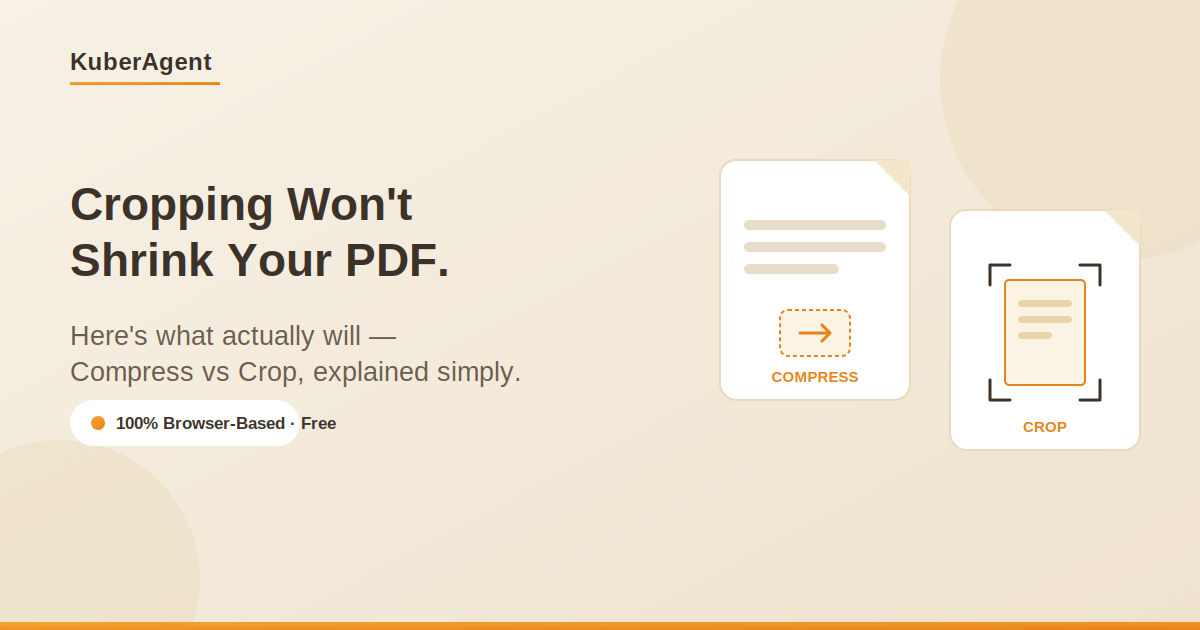
I want to tell you about the exact moment I understood how badly people misunderstand PDF tools, because I was one of those people for a long time.
A friend of mine was applying for a government job a few months back. The portal had a strict 2MB upload limit for supporting documents, and her scanned marksheet alone was sitting at 4.7MB. She spent almost forty minutes cropping the white borders around the scan, zooming in tighter and tighter, convinced that if she just trimmed enough empty space, the file would eventually squeeze under the limit. It never did. The file size barely moved. By the time she messaged me, she was ready to just photograph the document on her phone and hope for the best, which honestly would have made things worse.
That's when I realized this isn't really a "how do I use this tool" problem. It's a "these are two completely different tools and everyone assumes they're the same thing" problem. And once you actually understand the difference, the whole PDF-wrangling headache mostly disappears.
Compressing and Cropping Solve Two Different Problems
Here's the confusion in plain terms. When people say "I need to shrink my PDF," they usually mean one of two things without realizing it:
- "I need this file to take up less storage space, in megabytes, so it fits under an upload limit." That's compression.
- "I need this document to look tighter and cleaner, without huge blank margins around the edges." That's cropping.
These sound related because they both involve making a PDF "smaller" in some sense. But a compressed file and a cropped file are solving completely different problems, and mixing them up is exactly what happened with my friend's marksheet. She cropped a file that needed to be compressed, spent forty minutes on it, and got nowhere.
Here's the part that trips people up the most: cropping a PDF does not delete anything. It just changes what's visible. Underneath a tightly cropped page, the full original image or content is still sitting there in the file, invisible but present, taking up exactly the same amount of storage it always did. You can crop a scan down to a tiny postage-stamp-sized visible area and the file size might not drop by even one kilobyte. That's not a bug in whatever tool you're using — that's just how the CropBox works. It's a viewing boundary, not a deletion command.
If your actual problem is file size, cropping was never going to fix it. You need compression, which works completely differently — by actually re-encoding the images inside the PDF at a lower resolution or quality, and often stripping out leftover metadata the file doesn't need.
When You Actually Need to Compress a PDF (Not Crop It)
I've noticed the same handful of situations come up again and again when someone's stuck on file size, so I'll just list the ones that are most common in my own experience and from people who've messaged me about this:
- Job portals and recruitment forms. A lot of these still cap uploads at 5MB or even 2MB, which sounds generous until you realize a single scanned certificate can be 3–4MB on its own, before you've even attached a resume or a photo ID.
- University and government submissions. These tend to be the strictest of all. I've seen forms that ask for a full academic transcript scan under 1MB, which is almost impossible without compression, no matter how carefully you scan it.
- Sending files over WhatsApp, Slack, or email on a slow connection. Nobody talks about this one enough. If you're sending a document to someone on a patchy mobile connection, a smaller file isn't just convenient, it's the difference between the file actually sending or timing out three times in a row.
- Keeping a personal archive without your cloud storage filling up. If you're the type of person who scans every receipt, contract, and warranty card "just in case," those files add up fast. Compressing them before archiving isn't glamorous work, but it saves real space over a year or two.
Compression isn't magic, though, and it's worth being honest about the trade-off. The more aggressively you compress, the more the images inside the PDF lose sharpness. For a plain typed document — a Word-exported PDF, an invoice, a letter — you can compress fairly hard and barely notice a difference, because text isn't stored as pixels the way scanned images are. But if your PDF is basically a photograph of a physical page, squeeze it too hard and the text can start to look slightly blurry or the fine print can get harder to read. So there's a bit of a balancing act: compress enough to hit your size target, but not so much that the document becomes hard to actually read.
There's also a smaller, sneakier cause of oversized PDFs that most people never think to check: the scanning app itself. A lot of phone scanning apps default to saving pages at a much higher resolution than anyone actually needs for a document that's just going to be read on a screen or printed once. I've opened PDFs that were "just three pages" and somehow over 15MB, purely because the scanning app saved each page as an uncompressed, print-shop-quality image. If you scan documents regularly, it's worth checking your app's export settings once — dropping from "maximum quality" to "standard" or "document mode" can shrink files dramatically before you even get to a separate compression step, and you'll probably never notice the difference on screen.
When You Actually Need to Crop a PDF Instead
Cropping earns its place when the problem isn't size at all, it's presentation. A few real examples:
- You scanned a document on a flatbed scanner and it came out slightly crooked, with an inch of dead space around three of the four edges.
- You only need one part of a page — say, a table buried in the middle of a longer report — and sending the whole page feels unnecessary and unprofessional.
- You're printing something and don't want to waste paper and ink on margins nobody asked for.
- You're merging pages from different sources into one document, and they were originally different physical sizes, so the final PDF looks inconsistent unless everything gets trimmed to match.
What I like about cropping, once you understand what it's actually doing, is that it's forgiving. Since it doesn't delete anything, you can crop too aggressively by accident, notice a heading got cut off, and just widen the crop box again. Nothing is lost in the process. That's genuinely useful when you're working with a document you don't have a backup of and don't want to risk permanently damaging.
How to Compress and Crop a PDF Online Without Uploading It Anywhere
For years the standard advice was either "buy Adobe Acrobat" for a task you might do four times a year, or "just use one of those free online PDF sites." The second option always made me a little uneasy, honestly. You're uploading a document — sometimes something like a signed agreement, a salary slip, or an ID scan — to a server you know nothing about, trusting a privacy policy you probably didn't read, and hoping the file actually gets deleted afterward like the fine print promises.
KuberAgent's free online Compress PDF and Crop PDF tools were built around avoiding that exact trade-off. Both run entirely inside your browser. The file is processed on your own device using your browser's local capabilities — it's never sent anywhere, never sitting on a server, never part of some upload queue you have to trust. For anything even slightly personal, that matters more than people usually give it credit for.
The Crop PDF tool gives you a visual box you can drag directly over the page to select the exact area you want to keep. If every page needs the same treatment, "Apply to All Pages" handles it in one click. If your document is a mix of different scans that each need their own adjustment, you can crop each page individually, and it remembers each one separately rather than forcing a single crop across the whole file.
Compress PDF is deliberately simple: drop the file in, choose a compression level, and download the result. No account, no watermark stamped across your document, no waiting around for an upload progress bar on a file you'd rather not upload in the first place.
The Right Order: Should You Crop or Compress First?
If you're dealing with a document that needs both fixes — cleaned-up margins and a smaller file size — the order you do things in genuinely changes the outcome. Crop first, then compress. If you compress first and crop afterward, you'll have a cropped file, but you'll have missed the chance to compress the already-trimmed version, and depending on the tool, you might end up doing the compression step twice. Crop first so the file is in its final visual shape, then compress that finished version so the size reduction applies to what you actually intend to send.
It's a minor sequencing detail, the kind of thing nobody thinks to mention, but it's exactly the sort of small mistake that turns a five-minute fix into redoing the same file three times before a deadline. My friend with the marksheet eventually got it under 2MB in about ninety seconds once she compressed it directly instead of cropping it into oblivion. The lesson stuck with both of us.
Ready to try Compress PDF?
Reduce the file size of your PDF documents locally while preserving clarity. Process your files locally & securely right inside your browser. No registration required.