
Got a podcast clip that runs three minutes too long? A voice memo with dead air at the start? A song you need cut down to 15 seconds for a Reel? You don't need Audacity, a paid app, or a tutorial on ffmpeg commands to fix any of that. A browser-based audio cutter can do it in under a minute, directly from your phone or laptop, without ever uploading your file to a server.
This guide explains exactly how online audio trimming works, walks through the process step-by-step, and answers the most common questions people search for when they need to cut, slice, or shorten an audio file.
What Is an Online Audio Cutter?
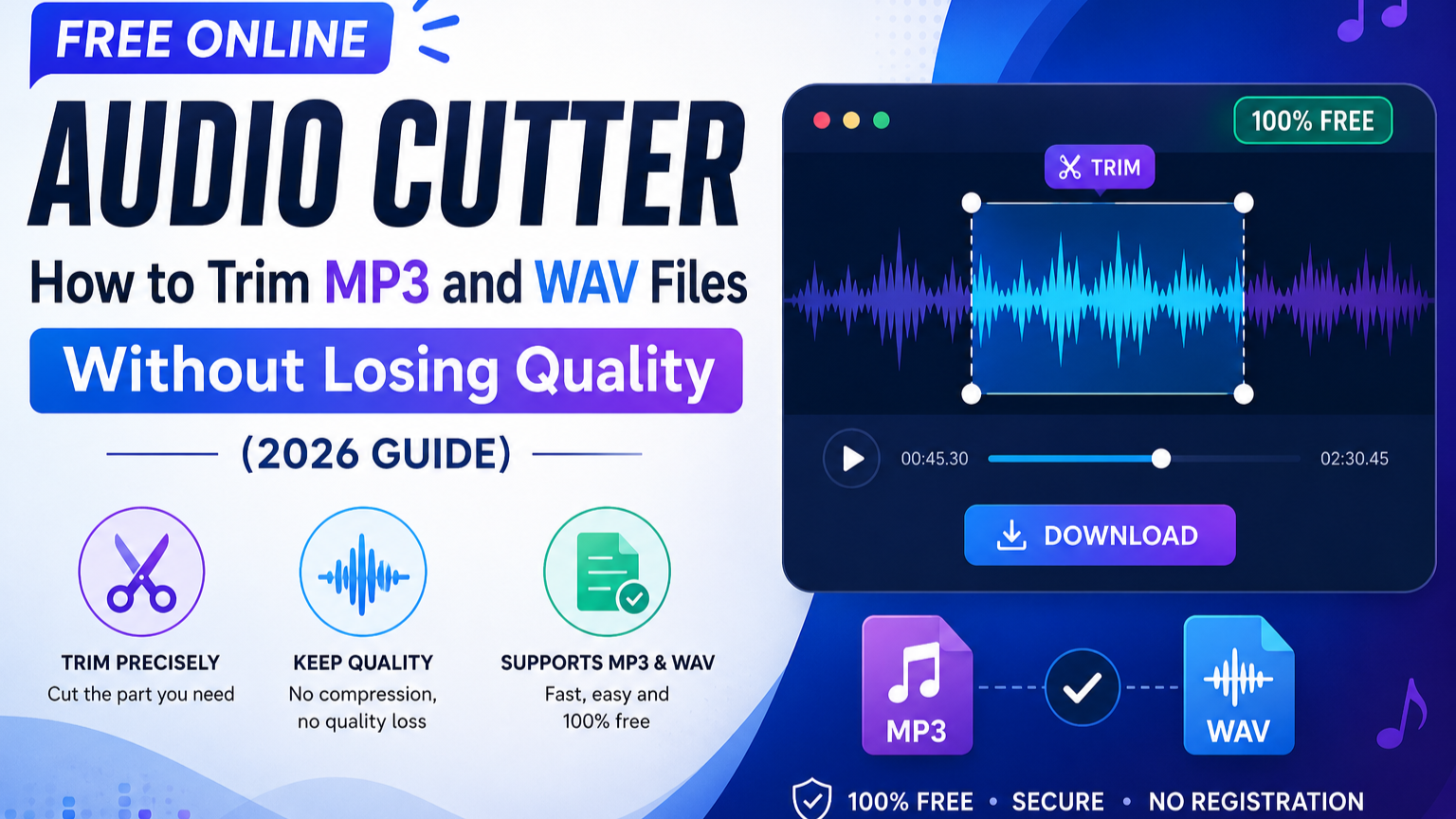
An online audio cutter is a web tool that lets you load an audio file, visually select the section you want to keep (or remove), and export the trimmed result — all inside your browser. Instead of installing desktop software, you simply drag and drop your file onto a page, see a waveform appear, and drag the edges of a selection box to mark your start and end points.
The best tools in this category, like the Audio Cutter & MP3 Trimmer on KuberAgent, run entirely client-side. That means the trimming happens using your browser's own audio-processing engine rather than sending your file to a remote server first. The practical effect: faster results and no privacy concerns about where your audio file ends up.
Why Trim Audio in the Browser Instead of Downloading an App?
There are a few clear advantages to browser-based audio editing over traditional desktop software:
- No installation. Nothing to download, no account to create, no software to keep updated.
- Works on any device. A waveform editor that runs in the browser works the same on Windows, macOS, Chromebooks, and most mobile browsers.
- Privacy by design. Because the audio file is decoded and processed locally in your browser's memory, it never has to leave your device. This matters if you're trimming a private voice memo, an unreleased song demo, or confidential meeting audio.
- Speed. There's no upload queue and no waiting on a remote server to process your file — slicing happens instantly once the waveform loads.
- No quality loss. A proper audio cutter decodes your file into raw waveform data and slices it precisely at the sample level, rather than re-encoding or compressing it. The output preserves the original fidelity.
How to Cut and Trim an Audio File Online (Step-by-Step)
Here's the typical workflow using a browser-based waveform editor:
- Upload your audio track. Drag and drop the file onto the page, or click to browse and select it. Common formats like MP3, WAV, AAC, M4A, and OGG are supported.
- Let the tool decode the waveform. The browser extracts the audio channels and plots a visual waveform timeline directly in memory — this typically takes just a few seconds.
- Set your start and end points. Drag the edges of the highlighted selection region across the waveform, or type exact timestamps into the start and end fields for frame-accurate precision.
- Preview your selection. Use the loop-selected-region option to listen to just the section you've marked, so you can fine-tune the cut before exporting.
- Cut and export. Click the cut/export button to generate your trimmed clip. The tool packages a lossless WAV file ready for download.
- Download your trimmed file. Save the new audio clip straight to your device — ready for a podcast edit, a ringtone, a social media post, or anywhere else you need it.
Common Use Cases for Audio Trimming
People reach for an audio cutter for all kinds of everyday tasks:
- Creating ringtones from a favorite song clip
- Trimming podcast intros/outros or cutting out a mistake mid-recording
- Shortening voice memos before sharing them
- Pulling sound bites for YouTube, Instagram Reels, or TikTok
- Removing silence or dead air from the start or end of a recording
- Isolating a specific quote or moment from an interview or lecture
- Prepping audio samples for music production
Frequently Asked Questions
What audio formats can I trim online?
Most browser-based audio cutters support standard formats including MP3, WAV, OGG, and M4A, covering the vast majority of everyday audio files from music apps, voice recorders, and podcast exports.
Does trimming audio reduce sound quality?
No — when a tool decodes audio into raw waveform buffers and slices that data directly, the cut preserves full fidelity. There's no re-compression involved, so the trimmed output sounds identical to the original recording.
Is it safe to cut audio files online?
Yes, as long as the tool processes files locally in your browser rather than uploading them to a server. Look for tools that explicitly state "100% client-side processing" — this means your audio never leaves your device, which is especially important for private recordings.
Do I need to install any software to trim audio?
No. Browser-based audio cutters work entirely within your web browser. There's nothing to install, and the tool works the same way across Windows, Mac, and most mobile devices.
What file format do I get after trimming?
Quality-focused online cutters typically export a lossless WAV file, since WAV preserves uncompressed audio data without introducing any compression artifacts during the cutting process.
Can I trim audio on my phone?
Yes. Since the entire process runs in the browser rather than through a native app, you can upload, trim, and download audio clips directly from a mobile browser without installing anything.
Is there a limit to how many times I can cut audio for free?
Free browser-based tools like KuberAgent's audio cutter typically have no usage limits, since there's no server-side processing cost involved — the work is done by your own device.
Try It Yourself
If you need to cut, trim, or slice an audio file right now, you can use the free Audio Cutter & MP3 Trimmer directly in your browser. Upload your track, drag the waveform selection to your desired range, and download a lossless WAV clip — all without creating an account or installing software.
Looking for more free browser-based utilities? Check out the full KuberAgent toolkit for video, image, and document tools that run entirely on your device.
Ready to try Audio Cutter & Trimmer?
Cut, trim, and slice your audio files visually with live waveform previews entirely in your browser. Process your files locally & securely right inside your browser. No registration required.