
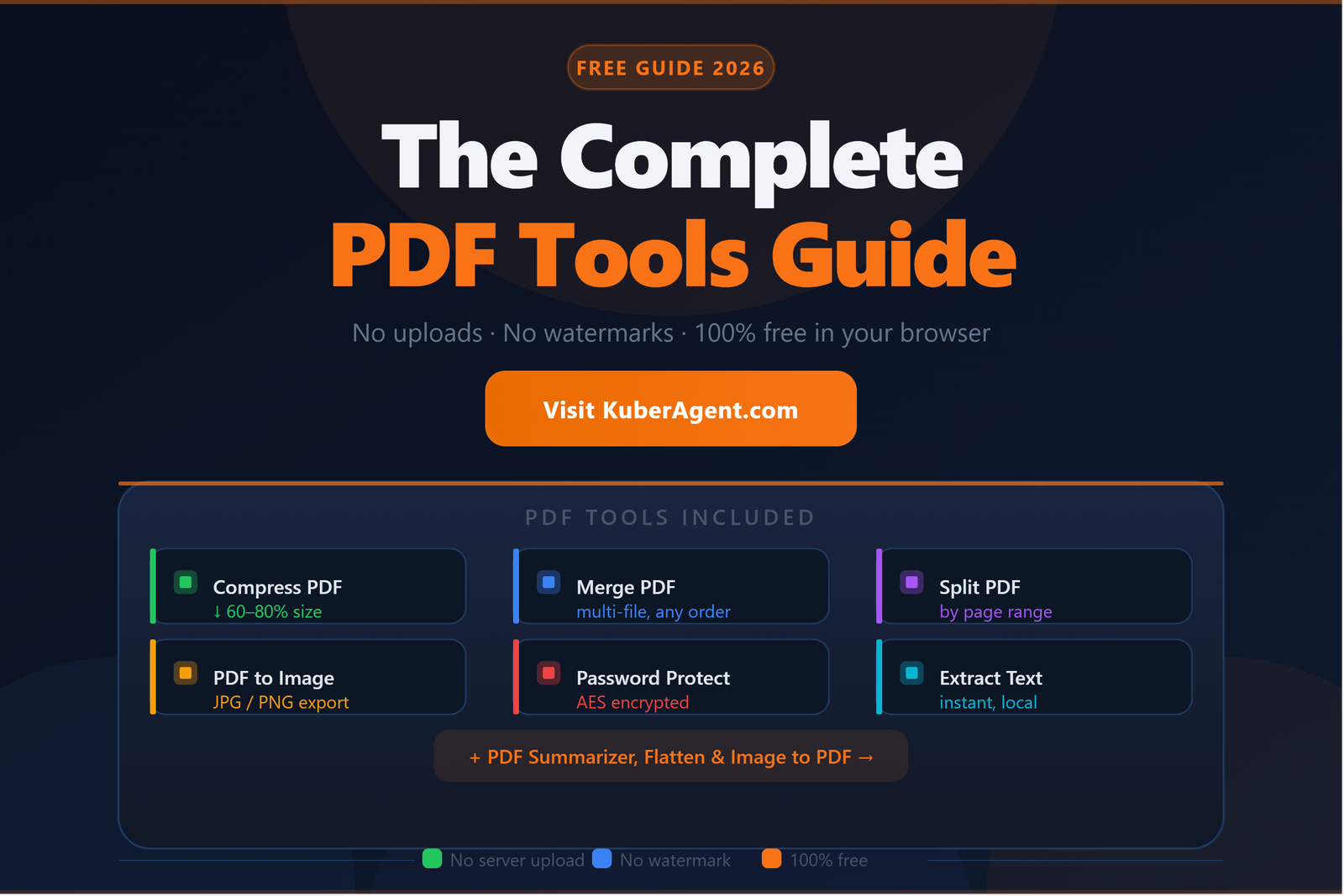
PDF files are everywhere — contracts, invoices, reports, study notes, product catalogs. And yet, every time you need to do something simple like compress a PDF to email it or merge two documents together, most free tools online make you jump through hoops: create an account, wait in a processing queue, download a watermarked result, or — worst of all — upload a confidential document to a server you know nothing about.
This guide covers everything you need to do with PDFs in 2026, using tools that run entirely in your browser. No uploads. No accounts. No watermarks. Just open, process, and download — privately on your own device.
All PDF tools mentioned in this guide are available free at KuberAgent.
Why Browser-Based PDF Tools Are Better for Privacy
When you upload a PDF to a typical online tool, your file travels to a third-party server, gets processed there, and then gets sent back to you. For most documents that might be fine — but for anything sensitive (medical records, legal contracts, financial reports, identity documents), that's a serious risk.
Browser-based tools like those on KuberAgent use your device's own processing power. The PDF never leaves your browser tab. Everything happens using WebAssembly and native browser APIs — the same technology that powers desktop-grade applications, now running right in Chrome, Firefox, Safari, or Edge without any installation.
The result: full functionality, zero data exposure, and no dependency on server availability or internet speed after the page loads.
1. PDF Compressor — Reduce PDF File Size Without Losing Quality
Large PDF files are one of the most common frustrations — email attachments that bounce, upload forms that reject files over 5MB, slow-loading documents in client portals. The KuberAgent PDF Compressor reduces file size by optimizing the internal structure of the PDF and compressing embedded images, without visibly degrading text quality or layout.
When to use it:
- Sending PDFs via email with attachment size limits
- Uploading documents to government portals or HR systems with file size caps
- Reducing storage size of scanned documents and invoices
- Optimizing PDFs for faster loading on websites
How it works: Upload your PDF, select your compression level (low, medium, or high), and download the compressed file — the entire process runs locally with no server involvement.
Pro tip: For scanned PDFs with large embedded images, high compression can reduce file size by 60–80%. For text-heavy PDFs, the reduction is more modest (20–40%) since text data is already compact.
2. PDF Merger — Combine Multiple PDFs Into One
Merging PDFs is one of the most frequently needed tasks for professionals, students, and freelancers alike. The KuberAgent PDF Merger lets you drag and drop multiple PDF files, arrange them in any order, and combine them into a single clean document — all in your browser.
Common use cases:
- Combining multiple chapters or sections of a report into one final document
- Merging scanned receipts or invoices into a single PDF for expense reporting
- Assembling a portfolio from individual project PDFs
- Joining multiple application forms into one submission file
Unlike tools like iLovePDF or SmallPDF that require server uploads and enforce file count or size limits on free plans, KuberAgent's merger runs client-side with no artificial restrictions.
3. PDF Splitter — Extract Pages or Split by Range
Sometimes you only need one section of a 40-page document, or you need to break a large PDF into smaller, more manageable files. The KuberAgent PDF Splitter lets you extract specific pages or define page ranges to split into separate files.
When you'd use this:
- Extracting a single chapter from a textbook PDF
- Separating individual invoices from a batch-generated PDF
- Pulling out only the signature pages from a contract
- Breaking a large catalog into product-category sections
The split files download individually or as a ZIP archive depending on how many output files are generated.
4. PDF to Image Converter — Export PDF Pages as JPG or PNG
There are many situations where you need a PDF as an image — for social media previews, email newsletters, website thumbnails, or presentation slides. The KuberAgent PDF to Image Converter converts each page of your PDF into a high-quality JPG or PNG image.
Key features:
- Convert individual pages or all pages at once
- Download as separate image files or a ZIP archive
- Output at high resolution for print-quality results
- No quality degradation from server-side re-encoding
Common use cases: Creating preview images of PDF menus, brochures, or reports for websites; extracting charts or diagrams from research papers; converting PDF certificates to shareable image formats for LinkedIn.
5. Image to PDF Converter — Turn Photos Into a PDF Document
The reverse workflow is equally common — you have a set of scanned photos, screenshots, or images and need to bundle them into a single PDF. The KuberAgent Image to PDF Converter accepts JPG, PNG, and WebP images and converts them into a clean, formatted PDF document.
When this is useful:
- Scanning physical documents with your phone camera and saving as PDF
- Converting screenshots of web pages into a reference document
- Creating a photo portfolio in PDF format
- Bundling product photos into a client-ready PDF catalog
You can reorder images before converting, and the output PDF maintains original image quality — nothing is re-compressed during conversion.
6. PDF Password Protector — Encrypt PDFs with AES Security
Sharing a confidential PDF via email or cloud storage without encryption is a security risk. The KuberAgent PDF Password Protector adds AES encryption to your PDF and sets a password that must be entered before the file can be opened.
Why this matters:
- Protects sensitive documents (tax files, legal agreements, medical reports) shared via email
- Prevents unauthorized access if a file is downloaded from a shared link
- Adds a layer of security for documents stored in cloud drives accessible by multiple people
Critical advantage: Because encryption happens locally, your password and your document are never transmitted to any server. With most online PDF protection tools, your file — and sometimes your password — passes through their servers first. With KuberAgent, the encryption key never leaves your device.
7. PDF to Text Extractor — Pull Text Content Out of PDFs
Need the raw text content from a PDF without copy-pasting page by page? The KuberAgent PDF to Text Extractor reads the text layer of your PDF and outputs it as editable plain text, ready to copy, edit, or reuse.
Practical uses:
- Extracting text from research papers to quote or summarize
- Copying contract clauses into a word processor for editing
- Pulling data from PDF reports into spreadsheets
- Repurposing PDF content for blog posts or presentations
Note: This tool works on text-layer PDFs (standard digital PDFs). Scanned PDFs that are image-only require OCR processing, which is a different workflow.
8. PDF Summarizer — Extract Key Points Using Local AI
For longer documents, reading everything to find the key points takes time. The KuberAgent PDF Summarizer uses client-side natural language processing to extract and summarize the main themes, key points, and actionable items from your PDF — without sending the document anywhere.
Best for:
- Quickly reviewing lengthy reports or whitepapers
- Getting the gist of research papers before reading in full
- Summarizing meeting minutes or legal documents
- Preparing briefing notes from large reference documents
9. PDF Form Flattener — Lock and Secure PDF Forms
When you receive a filled PDF form and need to send it in a way that prevents further editing — or when you need to print a form without the fillable field formatting — the KuberAgent PDF Form Flattener merges all form field content into the document layer, making it uneditable and secure.
Common scenarios:
- Finalizing filled application forms before submission
- Archiving signed PDF forms in a non-editable format
- Preventing accidental changes to completed compliance documents
- Fixing PDFs that print incorrectly due to floating form field layers
Quick Reference — All KuberAgent PDF Tools
| Tool | What It Does | Best For |
|---|---|---|
| PDF Compressor | Reduces PDF file size | Email attachments, portal uploads |
| PDF Merger | Combines multiple PDFs | Reports, portfolios, invoices |
| PDF Splitter | Extracts pages or splits by range | Chapters, sections, single pages |
| PDF to Image | Converts PDF pages to JPG/PNG | Thumbnails, social previews |
| Image to PDF | Converts images to PDF | Scans, photo bundles |
| PDF Password Protector | Encrypts PDF with AES | Sensitive documents, secure sharing |
| PDF to Text | Extracts text content | Editing, quoting, data extraction |
| PDF Summarizer | AI key point extraction | Long reports, research papers |
| PDF Form Flattener | Locks form fields permanently | Finalizing forms, archiving |
Frequently Asked Questions
Are KuberAgent's PDF tools really free with no watermark?
Yes — all PDF tools on KuberAgent are completely free, with no watermark added to your output files, no daily usage limits, and no paid tier required. There is no signup or account creation needed either.
Do my PDF files get uploaded to a server when I use these tools?
No. Every PDF tool on KuberAgent processes your file entirely inside your browser using client-side JavaScript and WebAssembly. Your PDF never leaves your device, and nothing is stored or logged on any server.
Which PDF tool should I use to reduce file size for email?
Use the PDF Compressor for reducing file size. For most PDFs, medium compression brings the file under common email attachment limits (10–25MB) while keeping document quality intact.
Can I merge more than two PDF files at once?
Yes, the PDF Merger supports multiple files in a single merge operation. You can drag and drop as many PDFs as needed, reorder them, and combine them all into one output file.
What is the difference between PDF to Text and PDF Summarizer?
PDF to Text extracts the complete raw text content of your document as-is, with no modification. PDF Summarizer uses local AI/NLP processing to analyze the content and output a condensed summary of the main points — useful when you want the essence of a long document without reading the full text.
Is the PDF Form Flattener the same as removing password protection?
No — they are different operations. Flattening merges fillable form fields into the document layer, making it uneditable. Password protection adds or removes encryption. KuberAgent has separate tools for each of these tasks.
Ready to try Image to PDF Converter?
Convert multiple images (PNG, JPG) into a clean, combined PDF document directly in your browser. Process your files locally & securely right inside your browser. No registration required.