
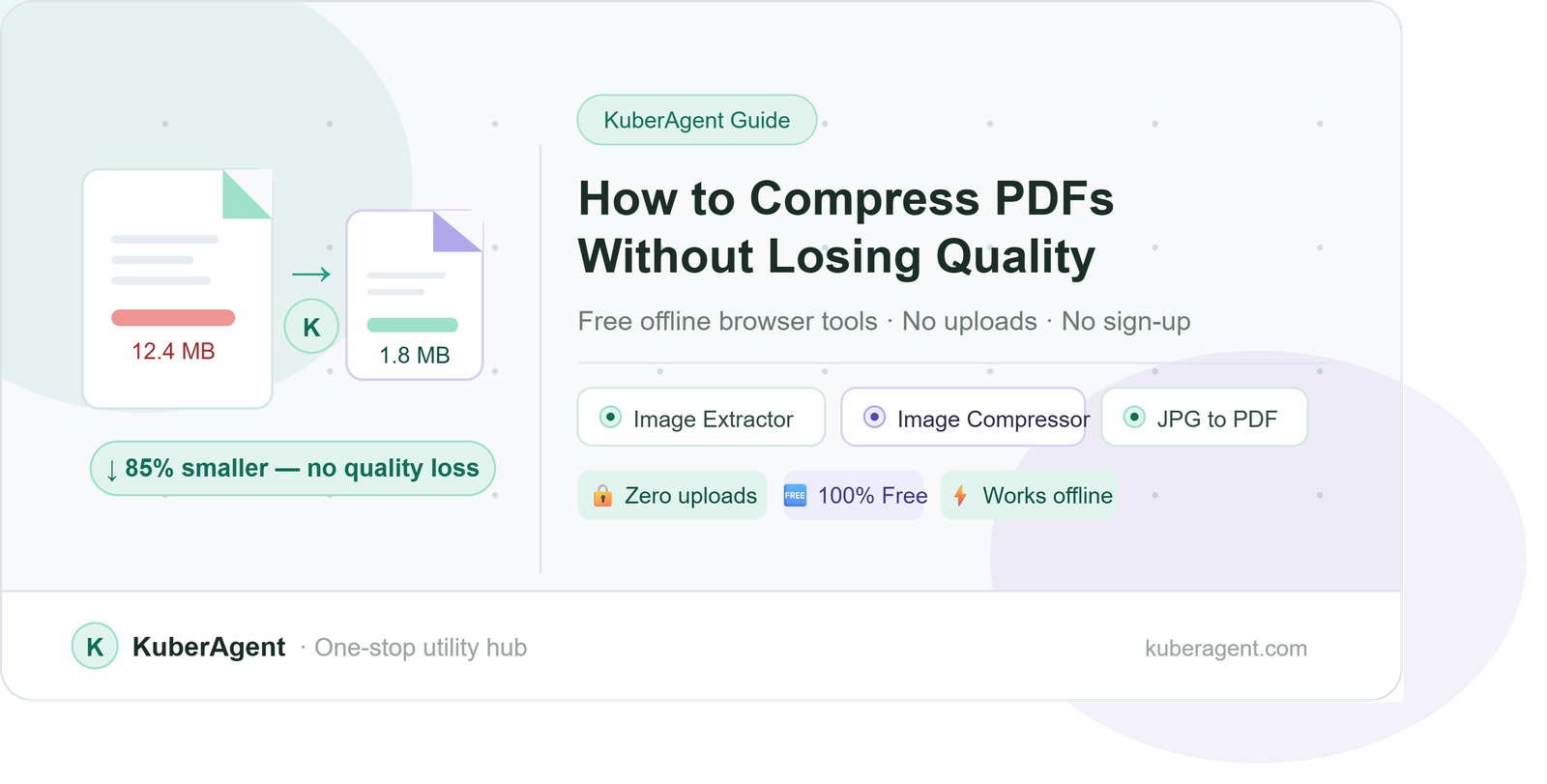
PDFs are the go-to format for sharing documents — from business reports and resumes to eBooks and invoices. But large PDF files can be a real headache. They slow down email attachments, take forever to upload, and eat up precious storage space.
The good news? You can compress PDFs without losing quality — and it's easier than you think. In this step-by-step guide, we'll walk you through the best methods to reduce PDF file size using KuberAgent's free browser-based tools — all 100% offline with zero server uploads.
Why Do PDFs Get So Large?
Before compressing, it helps to understand what makes a PDF large in the first place:
- High-resolution images embedded inside the document
- Scanned pages saved as heavy image files
- Embedded fonts that add extra data weight
- Unnecessary metadata and hidden annotation layers
- Multiple pages with rich graphics or charts
Once you identify the cause, you can pick the right KuberAgent tool to fix it.
Method 1: Compress Images Inside Your PDF (Most Effective)
The number one reason PDFs are large is high-resolution images embedded in them. The smartest way to compress a PDF is to compress those images first, then rebuild the PDF. KuberAgent makes this a two-step offline process:
Step 1 — Extract Images from Your PDF
Use KuberAgent's PDF Image Extractor to pull out all embedded images from your PDF — completely offline in your browser.
- Go to kuberagent.com/tool/pdf-extract-images
- Upload your PDF (processed locally — nothing sent to any server)
- Download all extracted images to your device
Step 2 — Compress Those Images
Now compress each extracted image using KuberAgent's Image Size Reducer & Compressor:
- Go to kuberagent.com/tool/image-compressor
- Upload your extracted image (JPEG, PNG, or WebP)
- Use the quality slider to balance size vs. sharpness
- Download the compressed image
Step 3 — Rebuild Your PDF
Finally, reassemble your compressed images back into a PDF using KuberAgent's JPG to PDF Converter:
- Go to kuberagent.com/tool/jpg-to-pdf
- Upload all your compressed images
- Arrange the page order if needed
- Download your new, lighter PDF
✅ Result: A fully compressed PDF where your images are optimised but text remains crisp — all done without uploading to any external server.
Method 2: Convert PDF to JPG, Then Recompress
If you want to convert and optimise each PDF page individually, use KuberAgent's PDF to JPG Converter:
- Go to kuberagent.com/tool/pdf-to-jpg
- Upload your PDF — each page is converted to a high-quality JPG
- Download the pages individually or as a ZIP archive
- Compress each JPG using the Image Compressor
- Merge back into a PDF using JPG to PDF Converter
✅ Best for: Scanned documents or image-heavy PDFs where every page is essentially a photo.
Method 3: Flatten Your PDF to Remove Hidden Bloat
PDFs can carry hidden layers of data — form fields, annotations, interactive elements, and comments — that inflate file size significantly even without visible images.
Use KuberAgent's Flatten PDF tool to strip all of this out:
- Go to kuberagent.com/tool/flatten-pdf
- Upload your PDF
- The tool removes all interactive layers and flattens content into a clean static document
- Download your flattened, lighter PDF
✅ Best for: PDFs exported from forms, contracts, or design tools that carry invisible annotation data.
Method 4: Convert to Grayscale to Cut Size Further
Colour data is one of the biggest contributors to PDF file size. If your PDF doesn't need colour (internal reports, drafts, text documents), converting to grayscale can reduce size dramatically.
Use KuberAgent's PDF to Grayscale tool:
- Go to kuberagent.com/tool/pdf-to-grayscale
- Upload your colour PDF
- All colour data is stripped and pages are rendered in clean black & white
- Download the grayscale PDF — typically 30–60% smaller
✅ Best for: Text reports, legal documents, internal files that do not need colour.
Method 5: Extract Only the Text from Your PDF
Sometimes you don't need the formatted PDF at all — just the text content. In that case, use KuberAgent's PDF to Text Extractor:
- Go to kuberagent.com/tool/pdf-to-txt
- Upload your PDF
- All text is extracted as a plain, lightweight .txt file
- Share or store the .txt — it will be a fraction of the original PDF size
✅ Best for: Sharing text-only content, feeding into other tools, or creating searchable archives.
Method 6: Use the AI PDF Summarizer to Share Key Points
If the goal is sharing information rather than sharing the file itself, use KuberAgent's AI PDF Summarizer:
- Go to kuberagent.com/tool/pdf-summarizer
- Upload your PDF — NLP runs locally in your browser
- Get a concise summary of key points, themes, and action items
- Share the summary instead of the full heavy file
✅ Best for: Reports, research papers, or lengthy documents where recipients only need the key takeaways.
Why KuberAgent is the Best Choice for PDF Compression
Unlike most online PDF tools that upload your files to remote servers, KuberAgent processes everything 100% locally in your browser using WebAssembly and modern browser APIs. This means:
- 🔒 Zero privacy risk — your files never leave your device
- ⚡ Faster processing — no upload/download round trips to a server
- 🆓 Completely free — no sign-up, no subscription, no limits
- 🌐 Works offline — once the tool loads, no internet needed
- 📱 Works on any device — mobile, tablet, or desktop browser
KuberAgent PDF Tools Quick Reference
| KuberAgent Tool | What It Does | Best For | Link |
|---|---|---|---|
| Image Size Reducer & Compressor | Compresses JPEG, PNG, WebP images with quality slider | Reducing image weight before PDF rebuild | kuberagent.com/tool/image-compressor |
| PDF Image Extractor | Pulls all embedded images out of a PDF | Isolating images for compression | kuberagent.com/tool/pdf-extract-images |
| PDF to JPG Converter | Converts each PDF page to a JPG image | Scanned or image-heavy PDFs | kuberagent.com/tool/pdf-to-jpg |
| JPG to PDF Converter | Merges compressed images back into a PDF | Rebuilding lighter PDFs from images | kuberagent.com/tool/jpg-to-pdf |
| Flatten PDF | Removes form fields, annotations, and hidden layers | Form PDFs and contract documents | kuberagent.com/tool/flatten-pdf |
| PDF to Grayscale | Strips colour data to reduce file size | Reports and text documents | kuberagent.com/tool/pdf-to-grayscale |
| PDF to Text Extractor | Extracts all text as a lightweight .txt file | Text-only sharing or archiving | kuberagent.com/tool/pdf-to-txt |
| AI PDF Summarizer | Summarises key points from any PDF locally | Sharing insights without the full file | kuberagent.com/tool/pdf-summarizer |
Pro Tips to Reduce PDF Size Even Further
- 🖼️ Compress images before embedding — Use KuberAgent's Image Compressor on every image before adding it to any document
- 🎨 Convert to grayscale first — Strip colour before running other compressions for maximum size reduction
- 📄 Flatten before sharing — Always flatten PDFs before emailing to remove hidden annotation bloat
- 🔄 Use the pipeline approach — Extract images → Compress images → Rebuild PDF for the best results
- ✂️ Remove unnecessary pages — If only certain pages are needed, share only those
How Much Can You Compress a PDF?
Results vary depending on content:
- Image-heavy PDFs: Can be reduced by 50–80% using the extract-compress-rebuild method
- Scanned documents: Often reduced by 60–90% after PDF to JPG + Image Compressor workflow
- Form PDFs: Typically reduced by 20–40% using the Flatten PDF tool
- Colour reports: Reduced by 30–60% using the PDF to Grayscale tool
Frequently Asked Questions (FAQ)
Q1: Can I compress a PDF for free without uploading it anywhere?
A: Yes — KuberAgent's entire PDF toolkit runs 100% offline in your browser. Tools like the PDF Image Extractor, Image Compressor, and JPG to PDF Converter process your files locally using WebAssembly. Your PDF never leaves your device, which means total privacy with zero server uploads.
Q2: Which KuberAgent tool should I use to make a PDF smaller?
A: It depends on what's making your PDF large. For image-heavy PDFs, use the PDF Image Extractor → Image Compressor → JPG to PDF workflow. For form or annotated PDFs, use the Flatten PDF tool. For colour documents, try PDF to Grayscale. For text-only sharing, use the PDF to Text Extractor.
Q3: Does KuberAgent's PDF compression affect text quality?
A: No. Text in PDFs is stored as vector data and is completely unaffected by image compression. The KuberAgent Image Compressor only targets embedded images. Your text remains sharp and fully readable at any zoom level after compression.
Q4: How do I compress a scanned PDF using KuberAgent?
A: Scanned PDFs are essentially pages saved as images. Use KuberAgent's PDF to JPG Converter to extract each page as a JPG, then run each JPG through the Image Size Reducer & Compressor with your preferred quality setting, and finally merge them back into a PDF using the JPG to PDF Converter.
Q5: Can I compress a PDF on my phone using KuberAgent?
A: Yes. All KuberAgent tools run entirely in your mobile browser — no app installation required. Open kuberagent.com on any Android or iPhone browser, choose your PDF tool, and process files directly on your phone with full offline privacy.
Q6: What is the difference between Flatten PDF and compressing images?
A: KuberAgent's Flatten PDF tool removes hidden data layers — form fields, annotations, comments, and interactive elements — that add invisible file size. Image compression reduces the visual data weight of embedded pictures. For the best results, do both: flatten first to remove hidden bloat, then compress images for maximum size reduction.
Q7: Will compressing a PDF change how it looks when printed?
A: Using KuberAgent's Image Compressor with a medium quality setting (70–80%) typically produces no visible difference in print. For documents intended for high-quality printing, keep the quality slider above 80%. For screen-only or email sharing, you can compress more aggressively without any visible loss.
Q8: Is there a file size limit on KuberAgent's PDF tools?
A: Since KuberAgent processes files locally in your browser, the only limit is your device's available memory. There are no artificial upload size caps or per-file restrictions. Very large PDFs (over 500MB) may take longer but will still process fully on a modern device.
Conclusion
Compressing a PDF doesn't have to mean sacrificing quality or risking your document's privacy. With KuberAgent's suite of free, offline browser tools, you get complete control over every step — from extracting and compressing embedded images to flattening hidden layers and converting to grayscale.
No sign-ups. No uploads. No watermarks. Just fast, private PDF compression that works directly in your browser on any device.
👉 Start compressing your PDFs right now at kuberagent.com — it's completely free.
Ready to try Compress PDF?
Reduce the file size of your PDF documents locally while preserving clarity. Process your files locally & securely right inside your browser. No registration required.