
If you've ever taken a photo on an iPhone and then tried to open it on a Windows laptop, upload it to an online form, or send it to a friend on Android, you've probably run into a frustrating wall: the file simply won't open. Instead of a normal image, you see a blank thumbnail or an error message. The reason is a file format called HEIC, and it trips up more people every single day than most tech companies would like to admit.
In this guide, we'll explain exactly what HEIC is, why it causes so many compatibility problems, and — most importantly — how to convert HEIC files to JPG, PNG, or WebP for free, without uploading your personal photos to a stranger's server.
What Is a HEIC File, and Why Does Your iPhone Use It?
HEIC stands for High Efficiency Image Container. Apple made it the default photo format starting with iOS 11, replacing the older JPEG format for photos captured on iPhone. The reason is simple: HEIC uses a modern compression standard called HEVC (High Efficiency Video Coding) that can store the same visual quality as a JPEG in roughly half the file size.
For Apple, this made sense. Smaller files mean more photos fit in iCloud storage, faster backups, and less bandwidth used when syncing across devices. For users, though, it introduced a new problem: HEIC is a relatively new format, and a huge number of apps, websites, and older operating systems simply don't know how to read it.
Common HEIC Compatibility Problems
Here are the situations where HEIC files most commonly cause headaches:
- Windows Photo Viewer, older versions of Windows, and many legacy image editors cannot open HEIC files without installing an additional codec pack.
- Websites and web forms — job applications, e-commerce listings, content management systems — often only accept JPG or PNG uploads and reject HEIC outright.
- Sending a HEIC photo to someone on an Android phone frequently results in the recipient seeing a generic file icon instead of the actual image.
- Print shops, design software, and professional printing services usually require JPG, PNG, or TIFF files and will reject HEIC submissions.
- Some social media platforms and marketing tools fail to generate previews or thumbnails for HEIC images. The simplest, most universal fix for all of these problems is converting your HEIC files into JPG or PNG — formats that virtually every piece of software on the planet can open without any extra plugins or codecs.
Why You Should Be Careful With Online HEIC Converters
If you search for "HEIC to JPG converter" online, you'll find dozens of free tools willing to help. But it's worth understanding how most of them actually work before you use one.
The typical online converter follows this process:
- You upload your HEIC photo to their server.
- Their server converts the file using server-side software.
- You download the converted JPG or PNG back to your device.
- The site claims to delete your original file after some period of time. The problem is that step four is rarely something you can verify. Once your photo leaves your device and lands on someone else's server, you have no way of confirming how long it's actually stored, who has access to it, or whether it's being used for anything beyond the conversion itself. For a random vacation photo, this might not matter much. But HEIC photos often include far more sensitive content — screenshots of private conversations, scanned documents, ID cards, whiteboard photos from work meetings, or pictures of children. Uploading these to an unknown third-party server, even briefly, is a real privacy trade-off that most people don't think about.
A Better Approach: Client-Side, Browser-Based Conversion
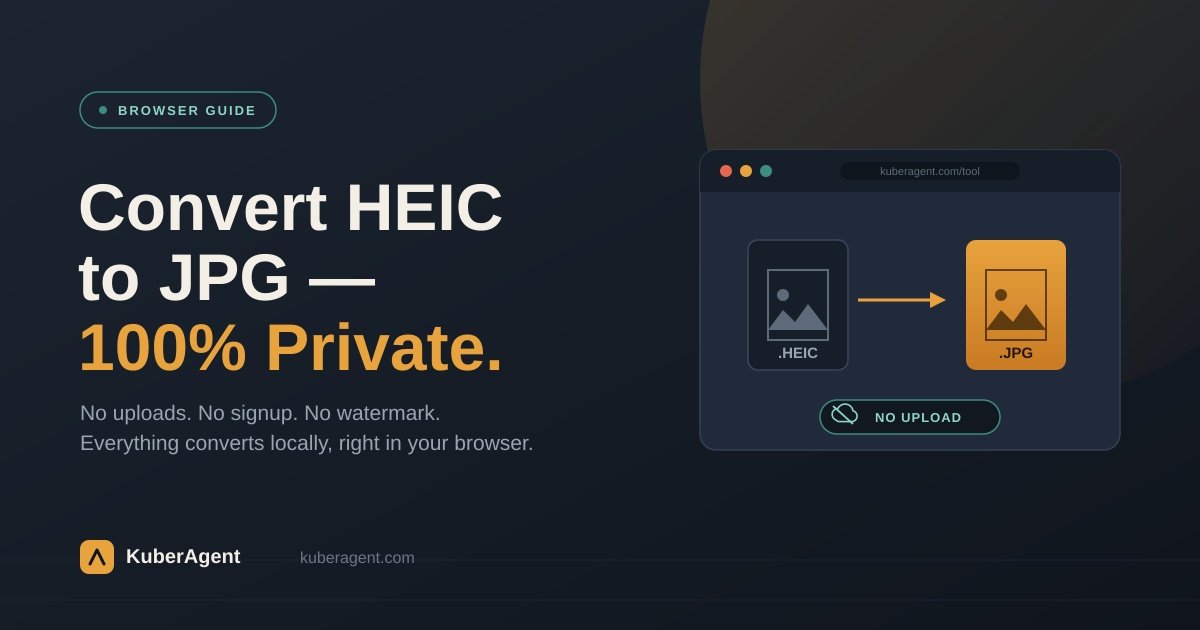
KuberAgent's Image Format Converter solves this problem differently. Instead of uploading your file to a server, the entire conversion process happens locally, inside your own web browser, using WebAssembly and the browser's built-in Canvas API.
Here's what happens technically when you use it:
- The browser reads and decodes the HEIC file directly on your device using a WebAssembly-based decoder.
- The decoded image is drawn onto an in-memory HTML canvas element.
- The canvas is then re-encoded into your chosen output format — JPG, PNG, or WebP.
- The final file is generated and downloaded straight from your browser to your device. At no point does your image data get transmitted over the internet. There's no upload step, no server-side storage, and no dependency on a stable internet connection once the page and its scripts have loaded. Your photo essentially never leaves your computer or phone.
Step-by-Step: How to Convert HEIC to JPG for Free
Converting a HEIC file takes less than a minute:
- Open the Image Format Converter on KuberAgent.
- Drag and drop your
.HEICfile into the upload area, or click to browse and select it from your device. - Choose your desired output format: JPG for smaller file sizes, PNG for lossless quality, or WebP for modern web use.
- Use the quality slider to balance file size against visual clarity, if the option is available for your chosen format.
- Click Convert, and your new file will be generated and ready to download instantly. There's no account creation, no email signup, and no watermark added to your converted image. You can repeat the process for as many files as you need, one at a time or in a batch.
Choosing the Right Output Format: JPG vs. PNG vs. WebP
Not all image formats are created equal, and picking the right one depends on what you plan to do with the file:
JPG is the most universally supported format and is ideal for photographs you intend to share, print, or upload to most websites. It uses lossy compression, meaning it discards some image data to reduce file size, but at high quality settings this loss is essentially invisible to the naked eye.
PNG is a lossless format, meaning no image data is discarded during compression. It's the better choice for images containing text, sharp lines, or transparency, such as logos, diagrams, or screenshots. The trade-off is a larger file size compared to JPG.
WebP is a newer format developed for the web. It typically produces smaller files than both JPG and PNG at comparable visual quality, making it a great choice for websites focused on fast load times. Its main limitation is slightly less universal support in older desktop software and some legacy editing tools.
For most everyday use cases — sharing iPhone photos, uploading to social media, or submitting files to a website — JPG remains the safest, most compatible default.
Why Privacy-First Tools Matter More Than Ever
As more of our daily lives move through browsers and cloud services, it's easy to forget how many small, routine actions involve handing personal files over to unknown servers. Converting an image format feels like a trivial task, but it's exactly the kind of everyday action that adds up over time if you're not paying attention to where your data goes.
Client-side tools like KuberAgent's converter represent a broader shift toward "local-first" software: applications that do the same job as their server-based counterparts, but keep your data on your own device by default. This approach isn't just about privacy for its own sake — it also tends to be faster, since there's no upload or download step, and it works even in situations with unreliable internet, since processing doesn't depend on a stable connection to a remote server.
Frequently Asked Questions
Is HEIC to JPG conversion on KuberAgent done offline? Yes. The entire conversion happens locally inside your browser using WebAssembly, meaning your image is never uploaded to any server.
Does converting HEIC to JPG reduce image quality? There is some minor quality loss due to JPG lossy compression, but at quality settings of 90 percent, the difference is generally imperceptible to the human eye.
Can I convert multiple HEIC files to JPG at the same time? Yes, you can select multiple files at once, and each one is processed locally and queued for individual download.
Is there a file size limit when converting HEIC images? There's no artificial size limit imposed by the tool, but very large files or large batches may be limited by your device's available memory, since all processing happens locally rather than on a remote server.
Do I need to install any software or app to convert HEIC files? No installation is required. The tool runs entirely inside your web browser on both desktop and mobile devices.
Is this HEIC converter free to use? Yes, the tool is completely free, with no account signup, no email requirement, and no watermark added to your converted files.
Can I convert HEIC to formats other than JPG? Yes, in addition to JPG, you can convert HEIC files to PNG or WebP depending on your needs.
Final Thoughts
HEIC is a genuinely useful format for Apple devices, but its limited compatibility outside the Apple ecosystem makes conversion a near-daily necessity for many iPhone users. Rather than uploading personal photos to an unknown server just to change a file extension, a browser-based, client-side converter lets you get the same result — instantly, for free — while keeping your images exactly where they belong: on your own device.
Explore more browser-based, privacy-first tools for images, PDFs, audio, and everyday file tasks on KuberAgent, where nothing you upload ever actually leaves your device.
Ready to try Image Format Converter?
Convert your images between WebP, PNG, JPEG, and SVG locally in your browser with adjustable quality. Process your files locally & securely right inside your browser. No registration required.