
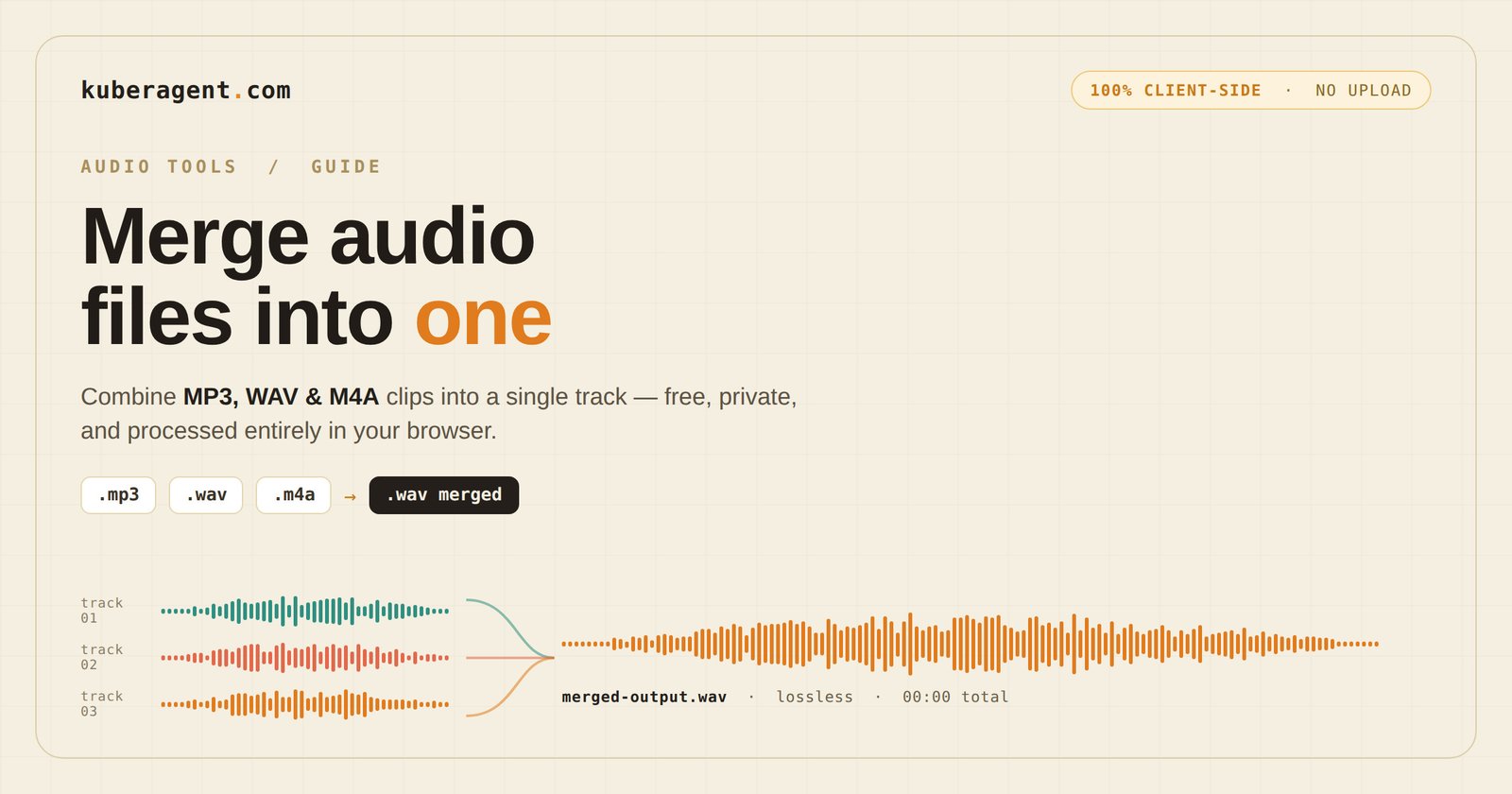
You've recorded three separate voice notes for a podcast intro, spliced together an audiobook chapter from four files your narrator sent you, or you just want your "workout hype" playlist clips stitched into one continuous track for a single upload. Whatever the reason, you're staring at a folder full of separate audio files that all need to become one file — and you need it done without installing a 200MB desktop editor or uploading your voice recordings to a server you've never heard of.
This is exactly the gap KuberAgent's Audio Merger fills. It's a browser-based tool that joins multiple MP3, WAV, AAC, or M4A files into a single continuous track, in any order you choose, entirely on your own device. No installs. No uploads. No signup. Let's walk through why this matters, exactly how it works, and every practical way people put it to use.
Why "Just Merge the Files" Is Trickier Than It Sounds
At first glance, combining a few audio files feels like it should be a two-click job. In practice, most people run into one of three walls.
Wall one: desktop software is overkill. Full editors like Audacity or Adobe Audition can absolutely merge files, but they demand a download, an install, and — for a first-time user — a learning curve just to find the "export" button. If all you need is three files stitched into one, opening a professional DAW feels like using a sledgehammer to hang a picture frame.
Wall two: online tools want your files first. Most "free online audio merger" tools follow the classic upload-process-download loop. Your recordings — which might include private conversations, unreleased music, sensitive interview audio, or a voice memo you'd rather not have sitting on a stranger's server — get sent off to be processed remotely. Even when these services are well-intentioned, there's no way to fully verify what happens to that file after you close the tab.
Wall three: mismatched file formats. Real-world audio libraries are messy. Your podcast intro might be an MP3, your recorded interview a WAV, and your outro jingle an M4A. Plenty of merging tools quietly assume every file is the same format and format, and either reject mixed uploads or produce a broken, choppy result.
KuberAgent's Audio Merger was built around solving all three of these at once.
How It Actually Works, Under the Hood
Instead of routing your files through a server, the tool uses your browser's native Web Audio API to do the heavy lifting locally. When you upload a file, the tool decodes it into raw PCM (pulse-code modulation) audio data — the same uncompressed waveform format audio engineers work with — directly inside your browser's memory. Because every file gets decoded into this same universal raw format before merging, it doesn't matter whether your source files are MP3, WAV, AAC, or M4A. As confirmed in the tool's own FAQ, the browser's audio context decodes different formats and merges them into a unified audio stream, so mixed-format merging isn't a special feature bolted on — it's simply how the tool works by design.
Once every track is decoded, the tool stitches the raw waveform buffers together end-to-end, in whatever sequence you've arranged them, and re-encodes the result into a single downloadable file. Because the whole pipeline — decode, merge, encode — runs on your device's own processor, nothing is ever uploaded to any server, and the tool's own guidance confirms your audio stays completely private throughout the entire merging process.
Step-by-Step: Merging Your Audio Files
Here's the full workflow from start to finish:
1. Open the Audio Merger tool. No account creation, no email gate.
2. Select two or more files. Browse or select your MP3, WAV, AAC, or M4A files — you can mix and match formats freely in the same project.
3. Arrange your track order. This is where the tool becomes genuinely useful rather than just functional: you can drag and reorder your clips to determine exactly what order they'll play in before merging. Want the intro first, the interview second, and the outro last? Just drag them into that sequence.
4. Add more tracks if needed. If you realize partway through that you forgot a clip, there's an "Add More" option to bring in additional files without starting over.
5. Check your total runtime. The tool displays a running total output length as you build your sequence, so you know exactly how long your final combined file will be before you commit to merging.
6. Merge and download. Hit the merge button, and the tool decodes and blends your PCM streams into memory buffers before packaging the result. The output downloads as a lossless combined WAV file, ready to use immediately.
The entire process, once your files are selected, typically takes seconds — there's no upload progress bar to wait through, because there's no upload happening at all.
Real-World Use Cases
Podcasters stitching an episode together. Most podcast episodes aren't recorded as one continuous file. You've got a pre-recorded intro jingle, the actual interview or monologue, and a standard outro with your subscribe call-to-action. Merging separate podcast segments — intro, interview, and outro — into one clean episode file is one of the most common uses for exactly this kind of tool.
Audiobook narrators and publishers. Long-form audiobooks are almost always recorded chapter by chapter, sometimes across different recording sessions or even different narrators. Joining audiobook chapters into a single continuous file makes distribution and playback far simpler for the end listener, especially on platforms that expect one file per section rather than dozens of fragments.
Voice memo consolidation. Anyone who's recorded a lecture, meeting, or interview across multiple phone voice-memo sessions — because the recording app hit a length limit, or the phone needed to be paused and restarted — ends up with several disconnected clips that all belong together. Merging voice recordings into a single file turns a scattered set of memos into one clean, chronological record.
Musicians and producers stitching demo ideas. Songwriters often capture riffs, hooks, or verses as separate short clips during a writing session. Stitching together music clips into a single reference track makes it much easier to listen back to an idea as a whole, rather than jumping between files.
Consolidating multiple recordings for archiving or sharing. Whether it's field recordings, customer call snippets for review, or a series of short voiceover takes, consolidating multiple recordings into a single file makes storage, sharing, and playback dramatically simpler than managing a folder of loose clips.
Audio Merger vs. Audio Joiner: Is There a Difference?
You'll see both terms used online, sometimes interchangeably, sometimes not. Technically, there's a subtle distinction worth knowing: an audio joiner connects files in sequence, while the term "audio merger" is sometimes used more broadly to also describe blending or overlapping tracks together. KuberAgent's tool specifically joins your tracks sequentially into one continuous file — meaning file A plays fully, then file B starts, then file C, with no overlapping or layering. If you're looking to layer two tracks on top of each other (like adding background music under a voiceover), that's a different function from what a sequential merger does — but for the vast majority of real use cases (podcasts, audiobooks, voice memos, demo clips), sequential joining is exactly what you want.
How It Compares to Other Options
| KuberAgent Audio Merger | Typical Online Mergers | Desktop Software (Audacity, etc.) | |
|---|---|---|---|
| Cost | Free | Often free with limits, or watermarked | Free (Audacity) to expensive (pro DAWs) |
| Uploads your files | No | Usually yes | No (local software) |
| Installation required | No | No | Yes |
| Mixed format support (MP3 + WAV + M4A together) | Yes | Varies, often no | Yes, with manual conversion steps |
| Reorder tracks before merging | Yes, drag-and-drop | Varies | Yes, but requires timeline editing skill |
| Learning curve | None | Low | Moderate to steep |
| Output quality | Lossless WAV | Varies | Depends on export settings |
The two standout differences are the privacy model and the mixed-format handling. Most lightweight online tools either force you to convert files to a matching format first, or they simply reject uploads that don't match — and nearly all of them require that initial upload step that KuberAgent's local-processing model skips entirely.
Tips for Getting Clean Merge Results
A few small habits will save you a re-do:
- Preview your track order before merging. Since the sequence is entirely controlled by your drag-and-drop arrangement, double-check the order in the list before hitting merge — there's no "undo" once the final file downloads.
- Watch total memory usage on very long projects. There's no strict file size limit, but very large files can consume significant browser memory since everything is processed locally rather than on a remote server. If you're merging hours of audio, consider doing it in two batches and merging the results together afterward.
- Trim clips first if they have dead air. The merger joins files exactly as they are — if a clip has a few seconds of silence or noise at the start or end, that will carry straight into your combined file. Trimming source clips beforehand (KuberAgent's Audio Cutter pairs well here) keeps transitions between tracks clean and professional.
- Keep a naming convention for your source files. If you're merging many clips, naming them numerically (01-intro, 02-interview, 03-outro) before you upload makes it much faster to spot and arrange the correct order in the tool.
- Export as WAV for further editing, convert down later if needed. Since the tool outputs a lossless combined WAV file, you get maximum quality to work with. If you need a smaller MP3 for distribution afterward, running the WAV through a converter is a quick second step.
Frequently Asked Questions
Can I merge files of different formats together?
Yes. MP3, WAV, and M4A files can be combined in any combination within a single project, since the tool decodes everything into a common format before merging.
Is there a limit on how many files I can merge at once?
There's no hard cap on file count. The main practical constraint is your device's available memory when working with very large or numerous files.
Will merging reduce my audio quality?
No. The output is a lossless WAV file, meaning no additional compression artifacts are introduced during the merge itself.
Do I need to install anything or create an account?
No. The tool runs entirely in your browser tab, with no signup and no software download required.
Is it actually safe to merge sensitive or private recordings this way?
Yes — since the tool processes files entirely inside your browser without ever uploading them to a server, your audio stays private on your device throughout the entire process, which makes it a reasonable choice even for sensitive interview or voice-memo content.
The Bottom Line
Merging audio files is one of those small, recurring tasks that shouldn't require a software install or a leap of faith about where your recordings end up. KuberAgent Audio Merger handles mixed formats, gives you full control over track order, and keeps every byte of your audio on your own device from start to finish — all for free, with no watermark and no artificial limits.
Try it yourself: open the Audio Merger tool, drop in your clips, arrange them in order, and download a single, clean combined track in seconds.
Ready to try Audio Merger & Joiner?
Merge multiple audio files (MP3, WAV) into a single continuous track with order sorting. Process your files locally & securely right inside your browser. No registration required.